Mastering Smartphone AI Cameras: Avoiding Over-Processing with a Cautionary Tale from Sony
Overview
Smartphone cameras have revolutionized photography, but the rise of AI-driven processing has introduced a new pitfall: over-processing that degrades image quality. Sony’s recent launch of the Xperia 1 VIII with its “AI Camera Assistant” has become a case study in how artificial intelligence can actually make photos worse instead of better. This tutorial will guide you through understanding AI camera features, recognizing harmful processing artifacts, and taking control of your device to produce natural, high-quality images—whether you own an Xperia or any other modern phone.
Prerequisites
Before diving in, ensure you have the following:
- A smartphone with AI camera features (e.g., Sony Xperia 1 VIII, Google Pixel, Samsung Galaxy, or iPhone).
- Access to the camera app’s settings, particularly options for AI enhancements or scene detection.
- A basic understanding of photography terms like exposure, white balance, and noise.
- Optional: A photo editing app (e.g., Lightroom, Snapseed) for manual adjustments.
Step-by-Step Guide
Step 1: Understand AI Camera Assistants
AI camera assistants use machine learning to analyze a scene and apply automatic adjustments—such as boosting colors, smoothing skin, or sharpening details. Sony’s implementation on the Xperia 1 VIII, for example, was designed to enhance portraits and landscapes. However, early feedback revealed that the AI often created unnatural results: oversaturated skies, plastic-looking skin, and lost texture. The core issue is that algorithms can misinterpret artistic intent. To avoid falling into this trap, you must first recognize what your phone’s AI does.
Check your camera app for terms like “AI enhancement,” “scene optimizer,” or “intelligent processing.” In Sony’s case, it’s called “AI Camera Assistant” and is active by default. On other phones, look for similar toggles in the settings menu or as a mode selection.
Step 2: Identify AI Processing in Your Photos
Take a test shot in a varied scene—preferably one with natural textures (grass, skin, fabric) and a mix of light and shadow. Then, quickly open the photo. Signs of heavy AI processing include:
- Oversharpening: Halos around objects or an unnaturally crisp edge.
- Color Clipping: Loss of gradation in bright areas (e.g., white clouds turning solid white).
- Smoothed Details: Skin appears waxy or grass looks like a solid green block.
- Unnatural HDR: Shadows are lifted too much, making the scene look flat or artificial.
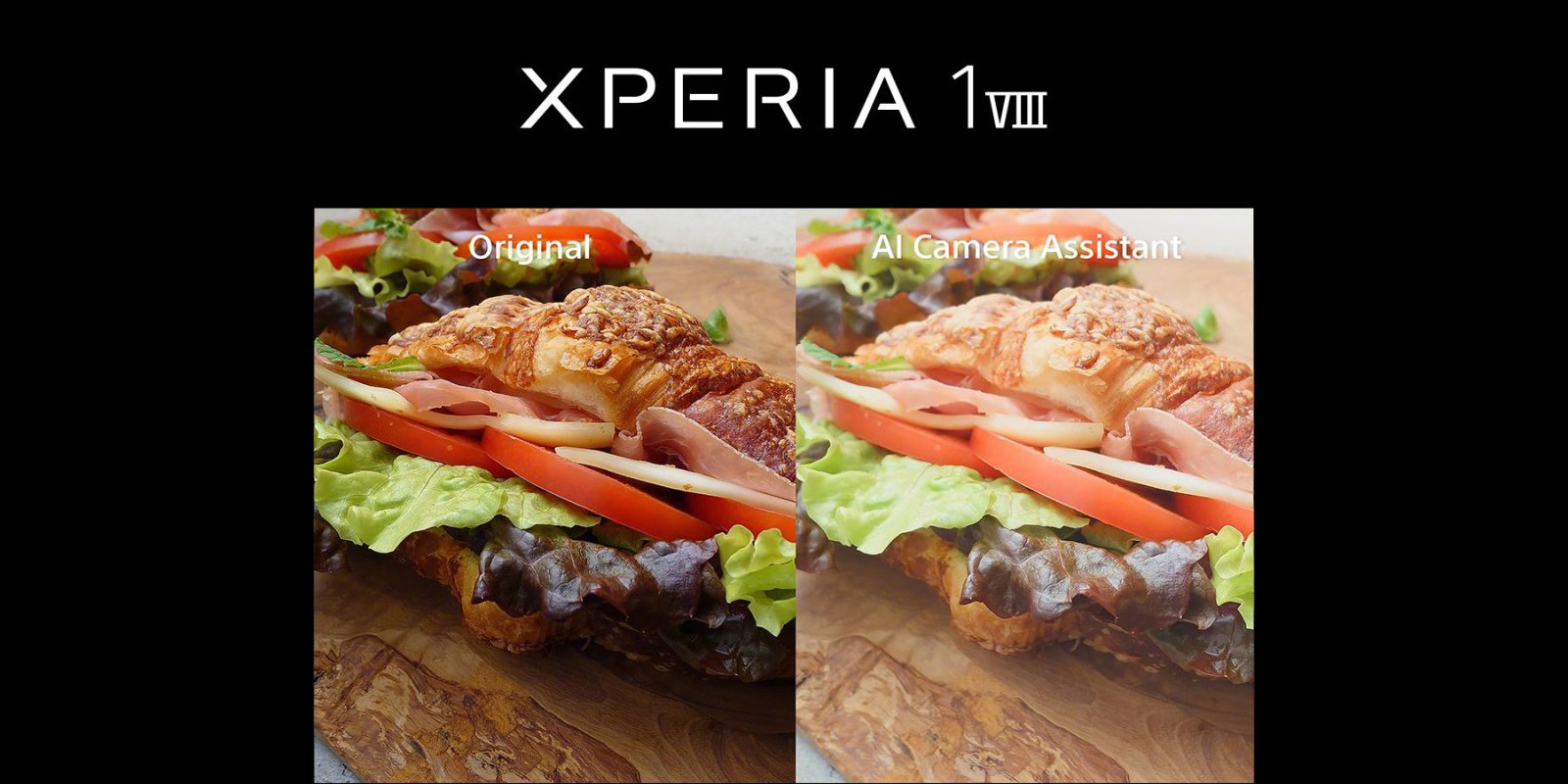
For Sony Xperia 1 VIII users, these artifacts were particularly visible in the “AI Camera Assistant” sample images shared online—faces looked airbrushed, and foliage lost its pixel-level detail.
Step 3: Compare Before and After
Most phones allow you to turn AI processing on/off independently. If your camera app has a “Pro” or “Manual” mode, it often bypasses AI entirely. Take two identical photos: one with AI enabled (default mode) and one in the Pro mode with all AI off. Alternatively, use a third-party camera app (like Open Camera) that does not apply any AI. On the Xperia 1 VIII, you can disable the “AI Camera Assistant” in the camera settings under “Assistant settings.” Compare the two images side by side. You’ll likely notice that the non-AI version retains more natural texture and accurate colors, while the AI version looks “overcooked.” This exercise is crucial to understanding what your phone is doing to your images.
Step 4: Disable AI Enhancements
Once you’ve seen the difference, take control. For Sony Xperia 1 VIII:
- Open the Camera app.
- Tap the gear icon to access settings.
- Find “AI Camera Assistant” and toggle it off.
- Optionally, switch to “Basic” mode for a more neutral processing pipeline.
For other phones:

- Samsung: Go to Camera settings > Scene Optimizer > Off.
- Google Pixel: Use the “Ultra HDR” toggle only after capturing; disable “Top Shot” for more control.
- iPhone: There’s no global AI off switch, but you can use ProRAW (on Pro models) which preserves more data without aggressive processing.
Remember: Disabling AI may reduce some convenience (e.g., auto-HDR), but you regain control over the final look.
Step 5: Use Manual Controls for Better Results
Even with AI off, modern cameras still apply some computational photography (e.g., multi-frame HDR). For pure control, switch to a manual mode (often labeled “Pro” or “Manual”). Adjust ISO, shutter speed, and white balance yourself. This is especially useful in challenging lighting. For example, in low light, a slower shutter speed with a steady hand can capture more detail than an AI-assisted night mode that smooths noise but also wipes out texture. Sony’s Xperia series actually has excellent manual controls, which ironically many users prefer over the AI assistant. By learning these basics, you can achieve professional-looking shots without relying on questionable AI.
Common Mistakes
- Trusting AI blindly: Many assume the phone knows best. The Sony backlash proves otherwise—always compare AI vs. non-AI results.
- Ignoring update notes: AI processing algorithms can change with software updates. What looked good in one version might become over-processed in the next.
- Not testing in different conditions: AI may work well in bright daylight but fail in portraits or low light. Test your device thoroughly.
- Over-relying on post-processing: Even if you shoot with AI off, avoid over-editing later—the goal is natural quality, not another layer of artifice.
- Forgetting to check resolution: Sometimes AI downsamples or applies noise reduction that reduces detail. Always shoot at full resolution.
Summary
AI camera assistants promise convenience but can degrade image quality, as Sony’s Xperia 1 VIII has illustrated. By understanding how these features work, actively comparing processed and unprocessed photos, and learning to disable or bypass them, you can take control of your smartphone photography. The key is to remain critical: technology should serve your vision, not impose its own. With the steps in this guide, you can avoid the pitfalls of over-processing and capture images that truly reflect the scene before you.
Related Articles
- YouTube Overhauls Google TV Sidebar: Library Access and Recent Channels Take Center Stage
- NVIDIA Spectrum-X Ethernet and MRC: Revolutionizing AI Network Infrastructure
- 6G Revolution: THz Communications, AI, and Metamaterials Poised to Define Next-Gen Wireless Networks
- 10 Shocking Facts About Mail-Based Tracking of Naval Ships
- Navigating Utah's SB 73: A Compliance Guide for Websites Facing VPN Liability
- The Anatomy of a Mail-Based Bluetooth Tracker Attack: A Technical Case Study
- Enhancing Man Pages: Lessons from rsync, strace, grep, and Perl
- How to Improve Man Pages with Practical Examples: A Guide for Network Tools